

Ready to Give Your Get Adulting App a Remodel? Here’s Every Single Customization Option Available In-App, Explained!
You’ve probably heard that no two snowflakes are ever alike. But did you know the same is true from one person’s Get Adulting app to the next?
These days, being able to customize one’s phone, apps, widgets, and wallpapers are one of the best—and most expected—features of having your very own portable mini-computer right in your pocket. At Get Adulting, we’ve heard users’ opinion on this, and we’ve followed through with all your comments, requests, and ideas on how to make Get Adulting as customizable as possible! With all these adjustments directly in the hands of users, no two apps are ever the same—making your Adulting app as helpful and as “you” as it can be.
So what exactly are all the things users can change to make their app unique? This blog post will dive into every customization option the app offers, from beautifying your main screen to crafting widget perfection. No gatekeeping here—every one of these options is simple, accessible, and free with the app! Ready to find out how to make your Get Adulting app burst with your own unique personality? Let’s dive in!
First things first: log in to Get Adulting, and go to settings. This is where you’ll find the vast majority of customization options, and this blog post will go through each section and custom option in order! We’ll start with App Theme, and travel down to the bottom of Settings. Buckle up, kids—we’ve got a lot of ground to cover!
CUSTOMIZABLES IN “APP THEME”!!!
(Note: the very first thing you’ll see here in Settings, even before the App Theme section, is the option to change the app’s language to Spanish! This option is available under the “INDEX” button and is listed in small print within the “Primary Language” dropdown. This feature is iOS only for now, but is coming to Android soon!)
HOME THEME. (Note: this feature is iOS only for now.)
Duck Pond – Want to make a drastic change? You can alter your dashboard to look completely different—and adorable! Instead of the classic Get Adulting dashboard, try selecting Duck Pond, which changes your dash into an uber-cute, verdant park befit with a waterfall, picnic area, and lots of flora and fauna! This theme makes the app look like a relaxing mobile game, and even has a duck walking around on your login screen before you even enter the app!
Customize It! – You thought you couldn’t customize the customized home theme, huh? Well, you were wrong! Choose the time of day it is onscreen; whether there’s sometimes, always, or never rain; whether you want butterflies and dragonflies flitting around your screen; the color theme of the pond and whether each opened section matches those colors or not; and even how many ducklings are in your flock!

Pushboard – A fan of blockbuster crime movies where the hero pins all their information on a corkboard to best organize everything? Now you can too! Simple and efficient, this option makes the app look like a real-life bulletin board, complete with moveable cards for each section! Plus, customize your board with photos and trinkets to make it truly your own—then stand back and admire it all!
Customize It! – Is your board a corkboard, pegboard, chalkboard, whiteboard, or felt board? Do you want an oak, walnut, or metal frame (or none)? What about the type of paper, shape of pins, and even icons for each section card? Do you want to match your colors across the app, with options like honey, sage, and plum? The choice is yours!

Space – This option turns every section into its own colorful planet. It even has a spaceship, and turns every tap on the screen into a burst of stars! Set against an awesome galaxy backdrop with asteroids and nebulae, this option is perfect for anyone who wants to add a little zero-gravity flair to their to-do list.
Customize It! – You can choose whether the night sky changes in real time, or whether it’s always bright, dusk, or night. Also change the speed of everything moving onscreen, including the stars, their drift speed, the planets’ spin, and the shooting stars your taps evoke! You can also enable or disable the aforementioned rocket ship, or even choose an astronaut instead. Also select whether or not you want constellations in your sky and how many—and, astrology lovers, you can even customize your screen to show the specific constellations for your chart! Lastly, customize “your space” (get it?) by toggling on or off different options like nebula clouds, aurora, and planet moons.
Coming Soon – Hang tight for two more unique options that will arrive in the coming months: “Planner” and “Bookshelf”! I won’t spoil them, but you probably already guessed they’re going to be pretty neat!
COLORS.
App Color – Your first option here is to select the little color button and choose your app color yourself using the preset grid, the full spectrum, or color sliders. (You’ve probably seen these options before if you’ve ever tried to color on a photo in your phone!)
Background Color – After selecting your specific color above, toggle the “Enable Gradient Background” option to customize the color even more. Your text, the outlines of your sections, and more will stay the color you originally chose, while your background will adjust to the gradients you set. You can also choose from some gorgeous presets here, such as “Sunset,” “Blush,” “Oasis,” and “Daydream”!
Hazard Color – Change the color for your hazards—that is, the app’s warnings for overdue tasks—to whatever you want! It’s red by default, but if that feels too harsh, choose any other color that suits your fancy.
Quick Themes / Gradient Themes – These are preset color options, both with and without background gradients. Helpful if you want a bit of a change but you’re not sure what, there’s a vast amount of beautiful choices in all variations of tones and hues.
FONT.
Font Style – If you’re in school right now, you probably know the pain of wanting to throw up every time you see Arial, Times New Roman or any sort of Sans Serif font due to having to write every. Single. Assignment. Using one of those options. You probably also know the bliss of having that one teacher who lets you choose the font you use—an option now available in Get Adulting! Experience the joy of choosing for yourself by going to “Font Style” and hitting Edit. Then, choose from over 50 fonts—including three accessible options! These include a dyslexic-friendly font, a font for those with low vision, and even an option intended to reduce visual stress while reading, perfect for anyone with eye strain or—well, anyone, really!
Font Size – This one’s pretty simple. Use a neat slider bar to set the size of the app’s font, from as tiny as 80% to as large as 150%!
THEMES & EXTRAS.
Seasonal Themes – For all of you holiday freaks out there, Get Adulting has eight different seasonal themes, including Valentine’s Day, Spring, Pride, and Halloween! Choose one to add a bit of flair and decoration to your main screen.
Customize It! – Each of these themes can be personalized further. Toggle on or off the string lights and whatever’s “falling” from the top of the screen for each theme (pumpkins, snowflakes, flowers, etc.), and even choose the style of the string lights! For example, for the Spring theme, you can choose from Cherry Blossom, Wildflower, or Pastels; for Halloween, choose Classic, Spooky Glow, or Candy Corn; and for the Pride option, change the lights to show the colors of the flags for different sexual orientations! You can also choose to simply keep the lights the same as your app color for each theme.

Hanging Wisteria – Let hanging vines drape from the top of your main screen with this additional decoration option! (Note: this feature, along with Rainfall & Lightning and Constellations & Shooting Stars, is iOS only for now.)
Customize It! – Pick from numerous color options for the wisteria, as well as how much it sways, the fullness of the vines, and whether or not petals drift down as it lilts across your screen.
Rainfall & Lightning – Adding falling rain to your home screen is a fun and relaxing additional choice—you can even add lightning for that extra spark!
Customize It! – Choose whether to show the rain only in dark mode for some nighttime rain, as well as the speed, the amount, and the direction of the wind that can blow the drops to the right or left. Also toggle lightning on or off based on your preference!
Constellations & Shooting Stars – Add sparkling, gently moving stars and constellations to your screen with this option.
Customize It! – Choose whether to show these only in dark mode, as well as their color, the amount of stars, their twinkle speed, and whether they drift or stay still. Toggle a shooting star option as well, and adjust the frequency that they show up onscreen! Also change the constellation amount and which constellations you want—just like with the space theme, you can choose to customize these constellations to your personal astrology chart. Finally, use a sliding scale to select the opacity of these beauties!
App Icon – You asked, we answered! Choose from 15 different app icons that change the look of the app from your phone’s home screen. Pick from options such as Navy, Sage, Rainbow, Holographic, Sparkle, and even Vinyl! Have an idea for an icon you want to see? Submit your design here!
CUSTOMIZABLES IN “DARK MODE”!!!
Dark Mode General – This first section lets you enable dark mode, and also lets you select a very helpful option where dark mode turns on and off in the app based on whether your phone is in dark mode! Neat, huh? This is called “Follow System Setting” and is activated by a simple toggle.
Background Presets – Don’t want dark mode to be boring? It doesn’t have to be! Just like with your background color in light mode (that is, the default screen setting), here you can select from several premade color options based on darker colors. Some of your options here include Graphite, Charcoal, Plum, and Wine!

Custom Colors – Exactly like with your options in light mode, here you can choose whether or not to enable a gradient background, then customize your dark mode to be exactly the color(s) you want. You can also choose to keep your light mode accent color by toggling the “Keep Same App Color” option!
Theme Combos / Gradient Backgrounds – Use this as a helpful premade color toolkit! Just because this is dark mode doesn’t mean the app’s colors have to be boring. Choose from a vast array of premade color choices that utilize those darker hues to give you the perfect accent color, background color, and gradient. iOS users, you can even use the “Gradient Intensity” slider at the very bottom to alter the brightness of your gradient colors!

CUSTOMIZABLES IN “CUSTOMIZE YOUR APP SECTIONS”!!!
Quick Buttons (Note: this feature is iOS only for now.) – This bit of your in-app settings is not only a great way to see at a glance each different section the app has to offer; it’s also the perfect method of making your app as oriented to your own life as possible. The first toggle you’ll see is for Quick Buttons—that neat new feature that, when enabled, allows you to select different features of the app that you want to be easily accessible from the top of your home screen, such as the Conversion Chart, Digital Fidgets, or Focus Timer. (More on how to customize these in a bit!)
Upcoming & Overdue – After this, it’s pretty self-explanatory. Every section in the app, such as My Health, My Pets, etc., are available to toggle on or off, including the features inside the features (like tracking blood sugar in the My Health section, for example). First, though, you have the option of selecting whether you want to allow tasks in each section to show up in the “Upcoming” and “Overdue” banners on the app’s home screen—that is, whether you want to know that you have that dentist appointment in three days or that you forgot to change your oil last week. If you only want reminders of this nature for certain sections (say you really need reminders about car maintenance, but you’ve always got your budget taken care of), that’s exactly what this option is for!
Overdue Settings – This isn’t found in the “Customize Your App Sections” category, but instead on your home screen where it says “Overdue” (if you’ve enabled this option). You’ll see a little settings button on the right that takes you into even more custom options! These choices are pretty handy if you’re the kind of person who always says “I’ll get to it,” but sorta... never does. If that sounds like you, here are some solutions designed with your mind in mind!
Categories – Which sections of the app are critical for you to actually get done? This option allows you to choose which categories you want to receive Overdue notifications in, so you can stay on top of what’s important without being overwhelmed by what isn’t.
Notification Tone – We all need a helpful nudge sometimes. But is that nudge soft and easygoing so you know it’s okay that you’re a little late on things? Is it straight-up and simple, just informing you that you missed something? Or is it harsh enough to spur you into action without making excuses? Set the tone for success by choosing between “Soft,” “Normal,” and “Aggressive” tones for your overdue notifications.
Timing – This option allows you to choose when you actually receive reminders about what’s overdue in your app. Use “Standard Mode” to receive notifications at the time you set, or choose “ADHD Mode” to allow the app to send you notifications at any time within a window you choose! That way, you can still receive notifications in a window that’s convenient, but you don’t know when they’re coming. This gives your brain the chance to be surprised and spurred into action upon receiving your overdue notifications! You can even choose the “Custom” option to design a notification window that lasts all day, so you never know when notifications will come up at all. It’s like the ultimate surprise!
Frequency – Get Adulting will send reminders for overdue items as often as you think is reasonable. Do you want daily nudges? What about every two or three days, every week, or every two weeks? Choose whether to space reminders out or not based on the way your brain works best and the time it may take to complete each overdue task.
Time Sensitive, Grace Period, & Quiet Days – These last few options are some extra specific features you can turn on or off with a simple toggle. Enabling “Time Sensitive” allows overdue notifications to be delivered immediately, regardless of whether you’re in Focus mode or have your notifications scheduled. “Grace Period” is a handy feature that gives you some breathing room after something becomes overdue—because sometimes, you already know. Enable this option to allow 1, 3, 5, 7, or 14 days before receiving notifications about overdue tasks. Lastly, “Quiet Days” is simply an option that allows you to receive no overdue notifications on days you select!
Individual Sections – Back in the app’s Settings in “Customize Your App Sections,” underneath all of the options for Overdue notifications, you can view every section in the app available to you and decide whether you want it on your screen or not. Enabling some of these sections will enable further options in those sections—for example, enabling “My Health” allows you to choose if you want to track Vision, Cycle & Hormones, Blood Pressure, Blood Sugar, Heart Rate, and Vaccines. Enabling “My Garage” will give you the option of selecting Electric Car Mode. Your options for categories to toggle include everything from the bigger sections like “My Budget” and “My Work” to the smaller features like “Recipes,” “Daily Tasks” and “To-Do List.” Pick and choose to your heart’s content, so you have every feature you need, and none you don’t! Note: you’ll also see a button that says “Change Order” at the top—use this to rearrange the order of all the app’s sections to truly make the app your own!
CUSTOMIZABLES IN “WIDGETS”!!!
Daily Tasks – This widget allows you to see your Daily Tasks (and check them off) right from your phone’s lock screen or home screen!
Customize It! – Choose to make the widget small, medium, or large—the bigger it is, the more detailed it gets! Also choose the color of the widget and whether it matches your app color, or is something else entirely with the custom color option. You can also select which style you want for the widget—the colors alter slightly based on whether you pick Solid, Gradient, or Outlined! Finally, if you have this widget on your lock screen, you can choose whether the widget shows your Daily Task progress, or your Daily Task streak.

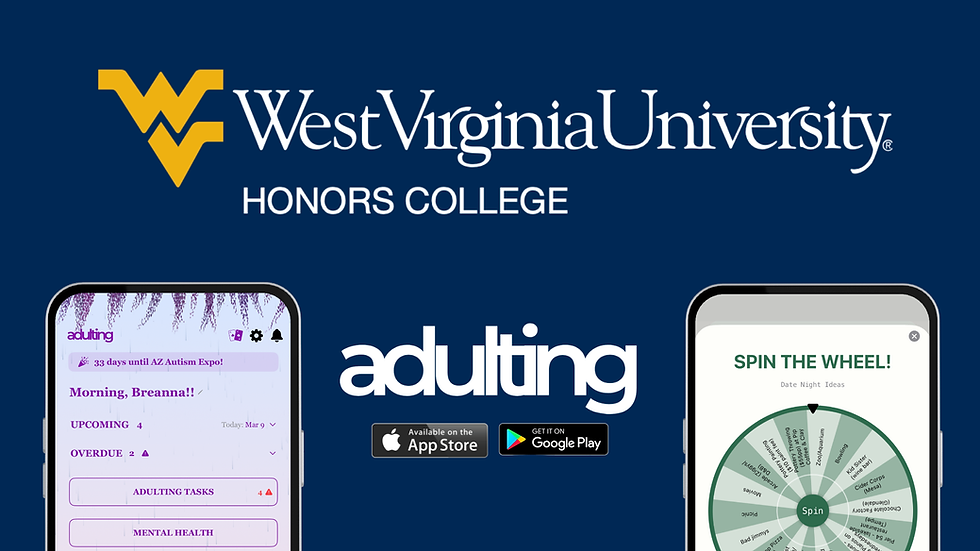
Spin Wheel – We know—sometimes, you just need the Get Adulting Spin Wheel as soon as possible, with no logging in and clicking around to look for it. Well, say no more, Spin Wheel enthusiasts!
Customize It! – This widget comes in small and medium sizes, and looks cute no matter which you pick! You can select the style and color of this widget too, just like with the Daily Tasks widget. Also choose your data source for the Spin Wheel—you can select from To-Dos, Adulting Tasks, and even Recipes so that your favorite Spin-Wheel-able feature is available as soon as you tap the widget. Note: you can even add this widget to your phone’s control center, so you can adjust your brightness, turn on your flashlight, and access the Spin Wheel all from the same place! Neat, huh?
Prescriptions – This handy new widget allows you to view and check off your medications as you take them, just like you would with a paper to-do list!
Customize It! – Pick whether you want this widget small, medium, or large—this one looks pretty similar regardless of the size you choose. You can choose the color and style, and you can also pick which prescriptions you want on the widget itself! As a fun bonus, you can even select the icon you want the widget to show once you’ve taken all your medications, with tons of options to choose from!
Upcoming – If you’re the kind of person that needs to be able to look at everything that’s going on in the coming weeks so you don’t forget, this widget is extremely helpful. It gives you a preview of whatever will be due soon in the app, without you even having to open it! Each line gives you the task that’s coming up as well as the day it’s due in a neat bulleted list.
Customize It! – Pick a small or medium size for this widget, then choose the widget color and style. Simple as that! The widget will auto-populate upcoming tasks based on what you’ve already written in Get Adulting, so there’s no extra work required on your part.
Overdue – This widget is very similar to Upcoming—it’s exactly the same, in fact, except it lists tasks that are past due instead of coming up. Not to stress you out, but it also tells you how many days late each task is. Better to know, right?
Customize It! – Again, here you can choose between small or medium sizes, then choose whether to match your app color or create a custom color, and finally whether you want your widget color to be Solid, Gradient, or Outlined.
Lock Screen Note – Remember the days when you had to find a wallpaper with that quote or affirmation you liked in order to show it on your lock screen? Now, all you need is the Lock Screen Note widget from Get Adulting! Simply type up to 60 characters in the text box in the app, then add the widget to your lock screen and admire. Perfect for quotes, notes, reminders—whatever you want, really!
CUSTOMIZABLES IN “QUICK BUTTONS”!!!
We talked about Quick Buttons earlier, but now it’s time to customize them to your heart’s content! With Quick Buttons, you can add up to four shortcut buttons to your app’s home screen to access your favorite sections even quicker. Choose from features like “Rainfall Fidget,” “Focus Timer,” “Cooking Basics” and “Future Letters” with 13 options in total.
Customize It! – Each Quick Button you choose has its own matching icon, but you can choose a custom icon for the buttons if you prefer! These icons (and the quick buttons themselves) will match the colors of your app, with lots of emoji-like options to choose from. Or, choose for the button to be text only! You can even add your own custom label to each button if desired, so each one can be titled however you want!
EVEN MORE CUSTOMIZABLES!!!
Yes, there’s more! We’re still taking you down the settings here, so from this point, we’ve made it through the App Theme section; Dark Mode; Customize Your App Sections; Widgets; and Quick Buttons. Continue on to learn about all the rest of the customizing options available in Settings, starting with Partner Sync & Backup!
Partner Sync & Backup – We won’t get too far into this feature (that’s a blog post for another time), but this brand new option is a $3.99/month or $24.99/year add-on which allows you to sync your app with a partner so you can share information such as Lists, Adulting Tasks, Bills, Reminders, My Pets, My Garage, and so on. Everything is optional to share, so you can choose exactly which sections you want to share with your partner, and they will see only those sections while keeping all your other data your own. This feature also automatically saves all of your info to your own private cloud, so you don’t have to manually export your data anymore! Of course, this setting is entirely optional, and is intended simply as a helpful feature for those who want to organize their life alongside their partner—especially if both partners already use and love Get Adulting!
Calendar Sync – This feature allows you to sync Get Adulting info to your personal Apple calendar! Choose an existing calendar to sync, or create a new one just for the app. The calendar syncs every 24 hours, so you can be sure your tasks and plans are as up-to-date as possible!
Reminder Banner – This is a super fun feature that simply puts a banner with text at the top of your screen, which you can adjust to say whatever you want! Add a reminder, a mantra, an important birthday, or anything at all that feels important for you in the moment.
Countdown / Count-up – These two options put a banner up top that shows the number of days until or since an event. For example, you can use the Countdown feature to show the number of days until Christmas, or use Count-Up to show the number of days since you’ve last engaged in a habit you want to break, like smoking or eating meat. Together, these options are perfect for garnering excitement for an event and celebrating personal milestones!
Affirmation Mode – Need a little sunshine in your life? Affirmation Mode is a neat little feature that adds daily positive affirmations to your home page and sends you encouraging notifications!
Pester Mode – Designed to keep you on the ball, Pester Mode sends weekly notifications that shows a count of any overdue items in the app, so you really can’t put it off this time!
Hide Hazards – This option allows you to turn off the warning icons on your app home screen as well as hiding the Overdue section. What this might look like when turned on is getting rid of the hazard icon in your Adulting Tasks from where you forgot to clean your microwave, the hazard icon in My Garage from your neglected oil change, and the notes underneath the “Overdue” banner that let you know those two tasks are overdue. If you do choose to hide these hazards, you can also choose whether to automatically re-enable them after one day, three days, one or two weeks, or one month—basically, whenever you’re feeling less overwhelmed and are ready to get these reminders again.
Show Last Activity – A cool setting for those who like to keep track of the timing of things, this option will show the date for the last activity you did on the home page sections for My Health, My Garage & My Pets. If enabled, this would add a little note beneath the title of each of these sections that might say, for example, Last Appointment: Annual Checkup, August 1st; or Last Maintenance: Air Filter, June 15th. Toggle which of the three sections you want this setting on for as well, whether that’s just one or all three of them!
Solitaire – Want to see the little Solitaire icon in the corner of your home page that allows you to play a built-in, ad-free Solitaire game right from the app? Make sure the “Enable Solitaire” toggle is turned on and you’re good to go! The game can also be turned off via this setting, so don’t worry—if you find yourself getting a little, erm, distracted with this feature, nothing says you can’t just get rid of it.
Change/Add 4-Digit PW – This isn’t a customization option, but it is where you can update your login password for the app! Simply confirm your current password first before entering and verifying your new one.
4 Digit / Face ID Login Screen – This feature allows you to customize what you see when you open your app! Choose from the Default setting, Inspirational Quotes, Did You Know?, Time-Based Greetings, and even Custom Message, which allows you to write your own note you’ll see on your login screen each time you open the app.

Outside Of The U.S.? – If you’re a Get Adulting user who lives outside of the States, you can enable this toggle in order to hide U.S.-specific content such as insurance info and driver’s license fields. You can also switch from miles to kilometers for the My Garage section, and from US dollars to numerous different currency options that update My Budget. Finally, you can also opt in to “Show Emissions Test Tracking” if your area requires periodic emissions inspections.
BUT WAIT... THERE’S MORE!!!
Believe it or not, there are still more customization options within Get Adulting. We’ll leave a few things for you to discover yourself, but some of these custom options can be found throughout the app with the Focus Timer, Night Sky and Rainfall fidgets, Lists & Notes, Daily Tasks, and more, with more options always being released!
Get Adulting has from the very beginning been built with its users in mind, so we sincerely hope that the customization options offered throughout the app help you make this resource feel like exactly what you want! If you have ideas for more features, tools, or customization options you want to see, reach out at contact@getadulting.com. Get Adulting is constantly being updated and improved, and we always welcome users to offer their individual voices to the creation and continuation of the app! We wouldn’t be here without you—seriously, lots of these customization options exist thanks to user requests!—so thank you, sincerely, for using Get Adulting, for suggesting ideas, and for continuing to make the best out of every day with the Get Adulting app! Try the Get Adulting app today for $2.99/year or $14.99 lifetime!
Try it with a 2 hour free preview (no sign up required) and a two week free trial! Apple App Store: http://apps.apple.com/us/app/get-adulting/id6744375132 Android Google Play: https://play.google.com/store/apps/details?id=com.getadulting.app&hl=en_US


Comments